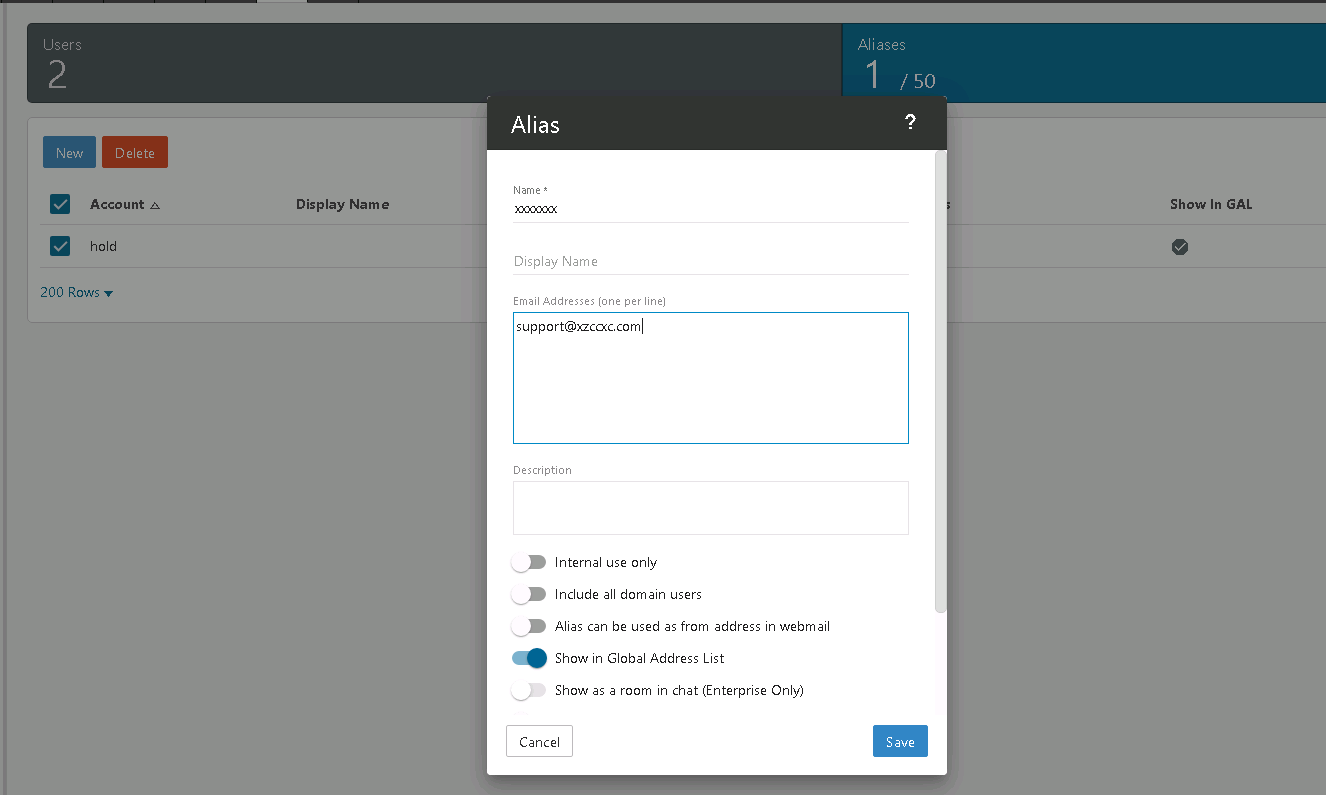
1) Login to postmaster email account and Click on the Domain Settings button at the left menu bar, Aliases--> New.
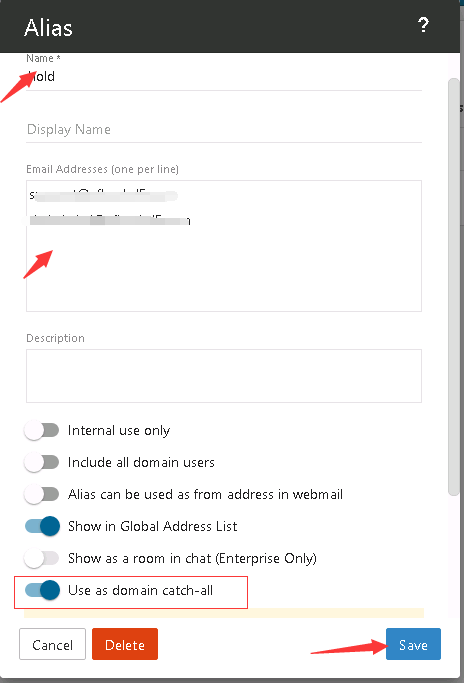
2) Now enter whatever you would like the catch-all alias to be named and click on the Email Address(es) tab. Enter the email you would like all incoming emails sent to in this field.
3) Scroll down the options below the blank text, turn on "Use as Domain catch-all", then save.
Note: It is important to never set an auto-responder on an email account that the catch-all forwards to, as it may result in spammers sending more email to your domain. In addition, additional bandwidth usage will result.