How to create an email account in cPanel:
The
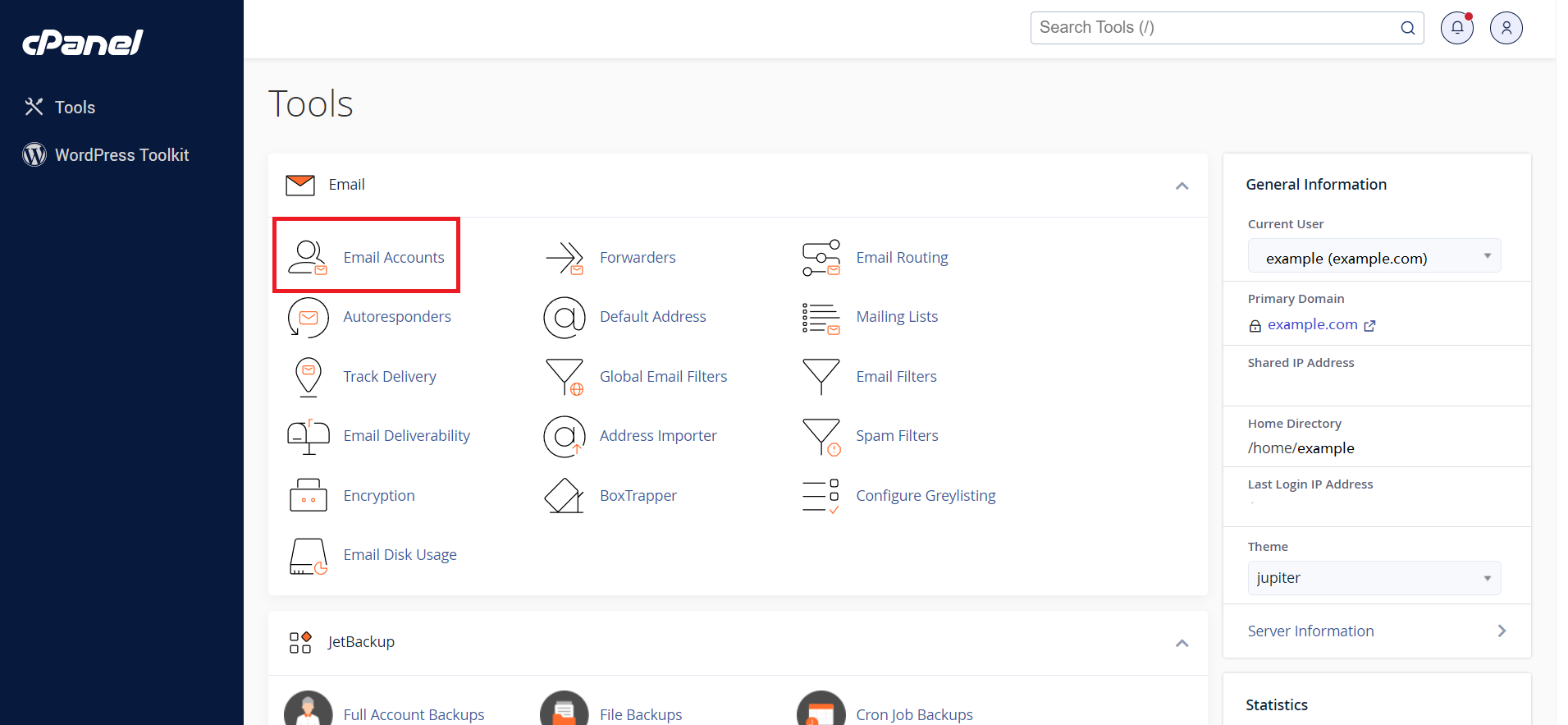
Email Accounts menu can be accessed quickly via
cPanel Shortcuts in the cPanel account.
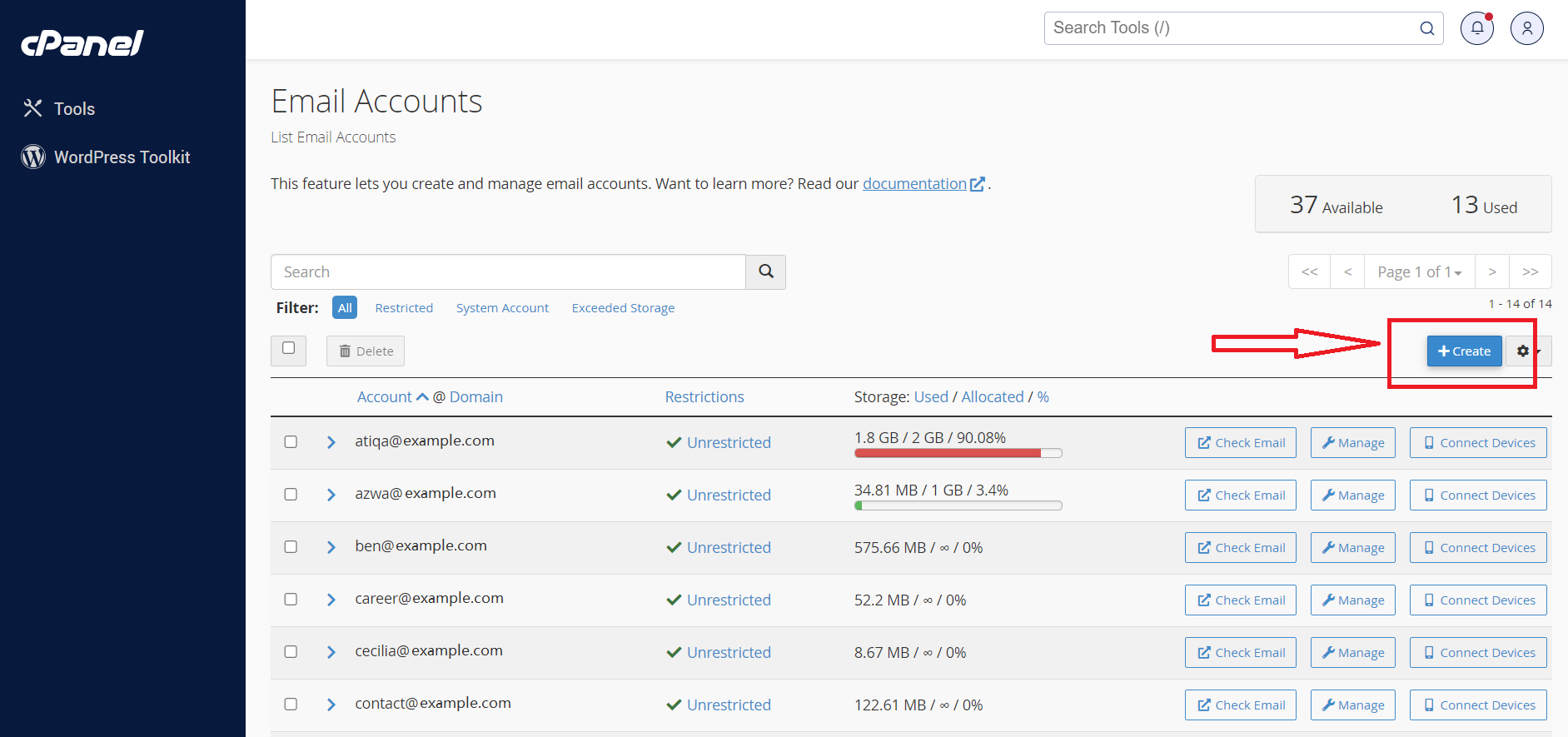
2. Navigate to the +Create button:
3. If you have multiple domains, select the domain you want your email account to be associated with in the drop-down list in the top right corner and enter the desired email.
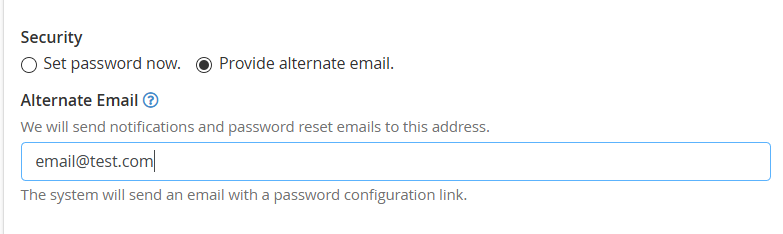
It is possible either to set the password right away: or provide an alternate email (the system will send an email with a password configuration link).

Or provide an alternate email (the system will send an email with a password configuration link as well as notifications and password reset emails):
Click on +Create once all is set.
4. To log in webmail, click on Check Email next to the email account in question:
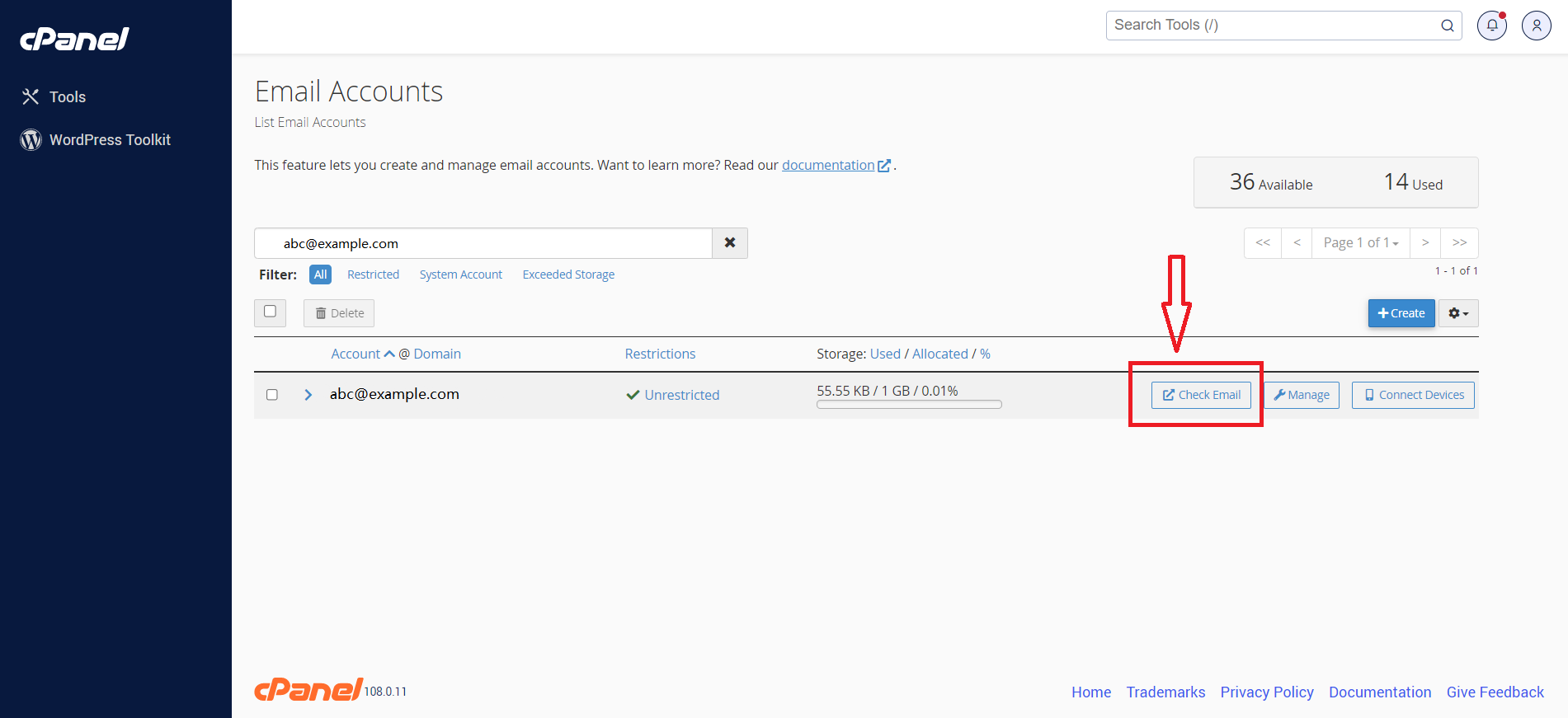
5. Once done, you will see the icons of the available webmail interfaces:
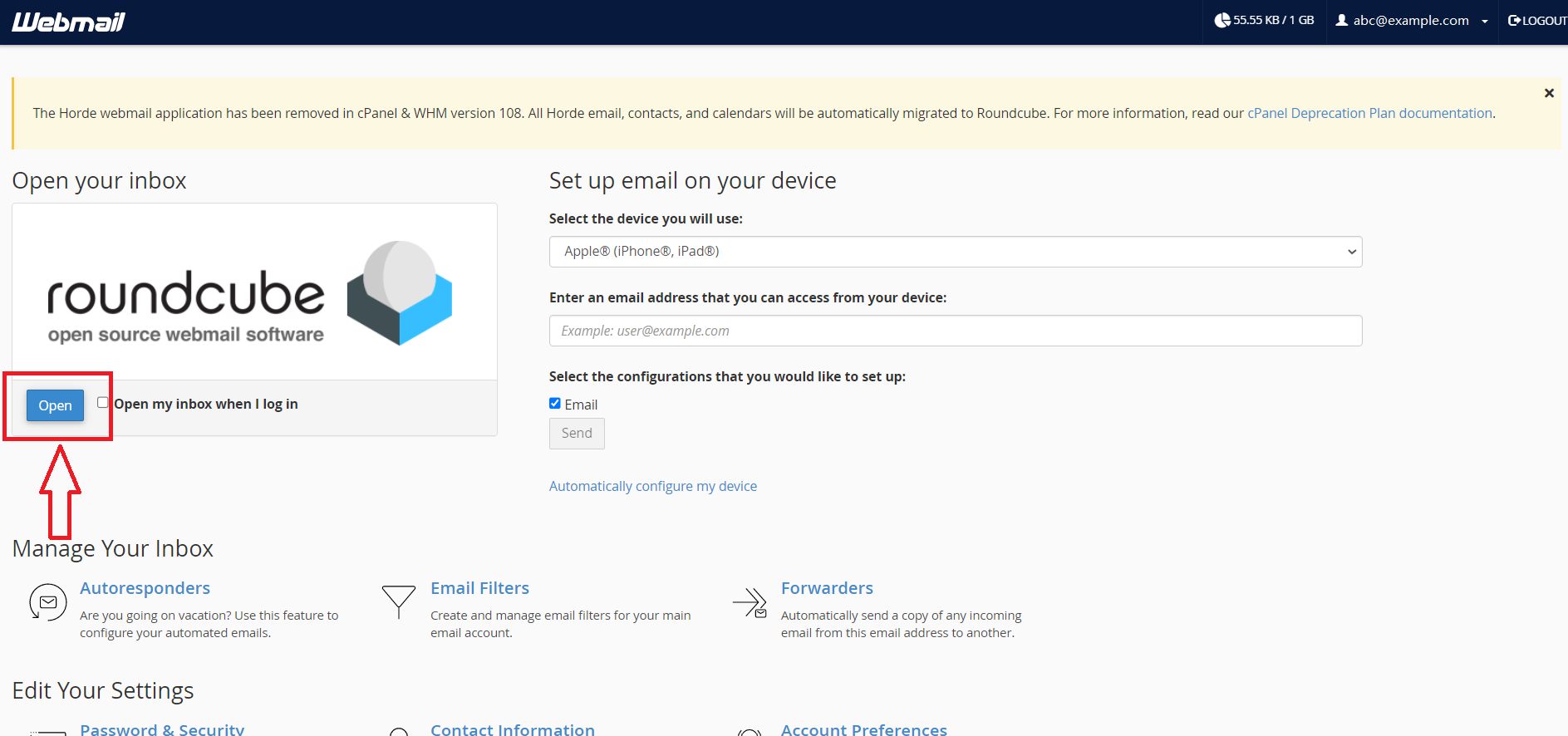
6. Feel free to choose any access webmail.
Roundcube webmail interface:
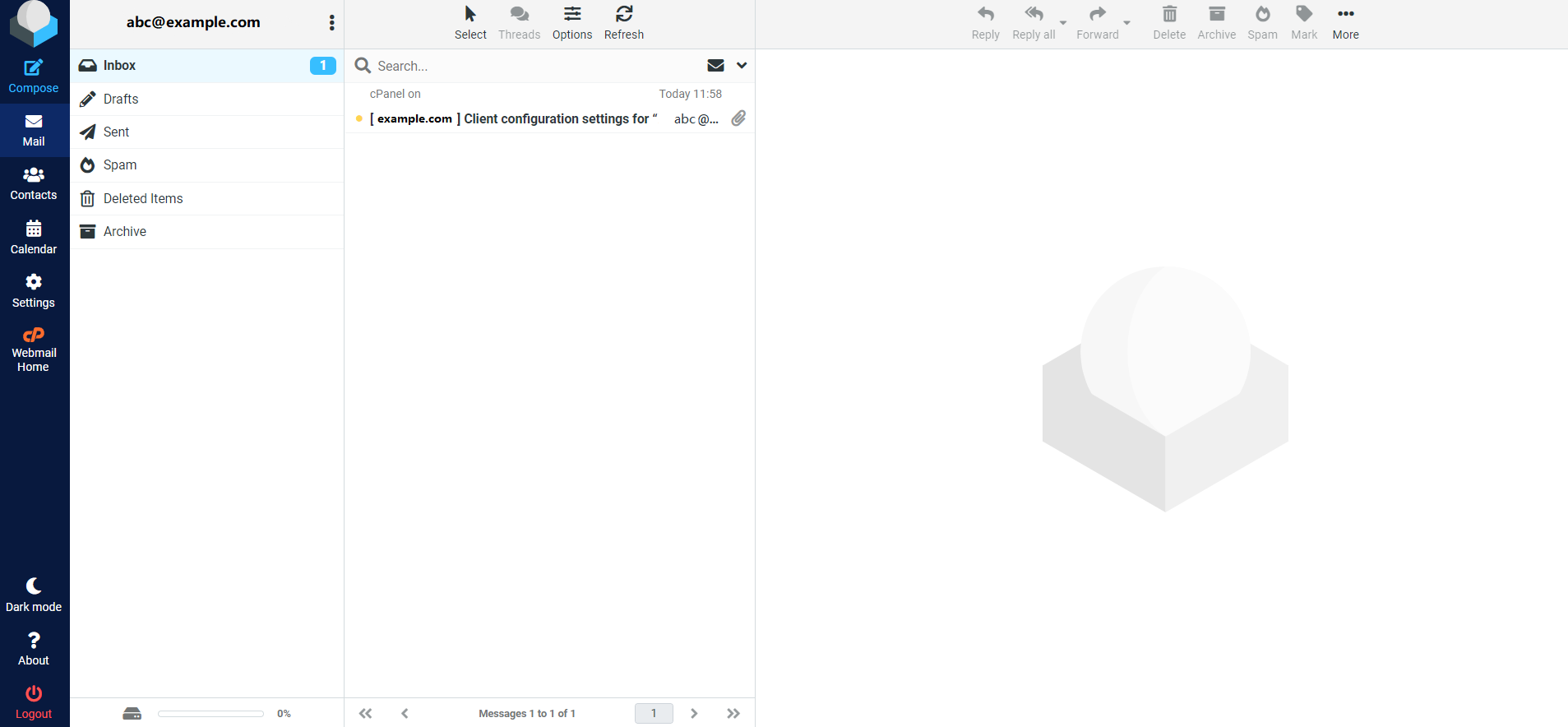
You can also access cPanel webmail directly in the browser using one of the following links:
https://yourdomain.com:2096
https://yourdomain.com/webmail
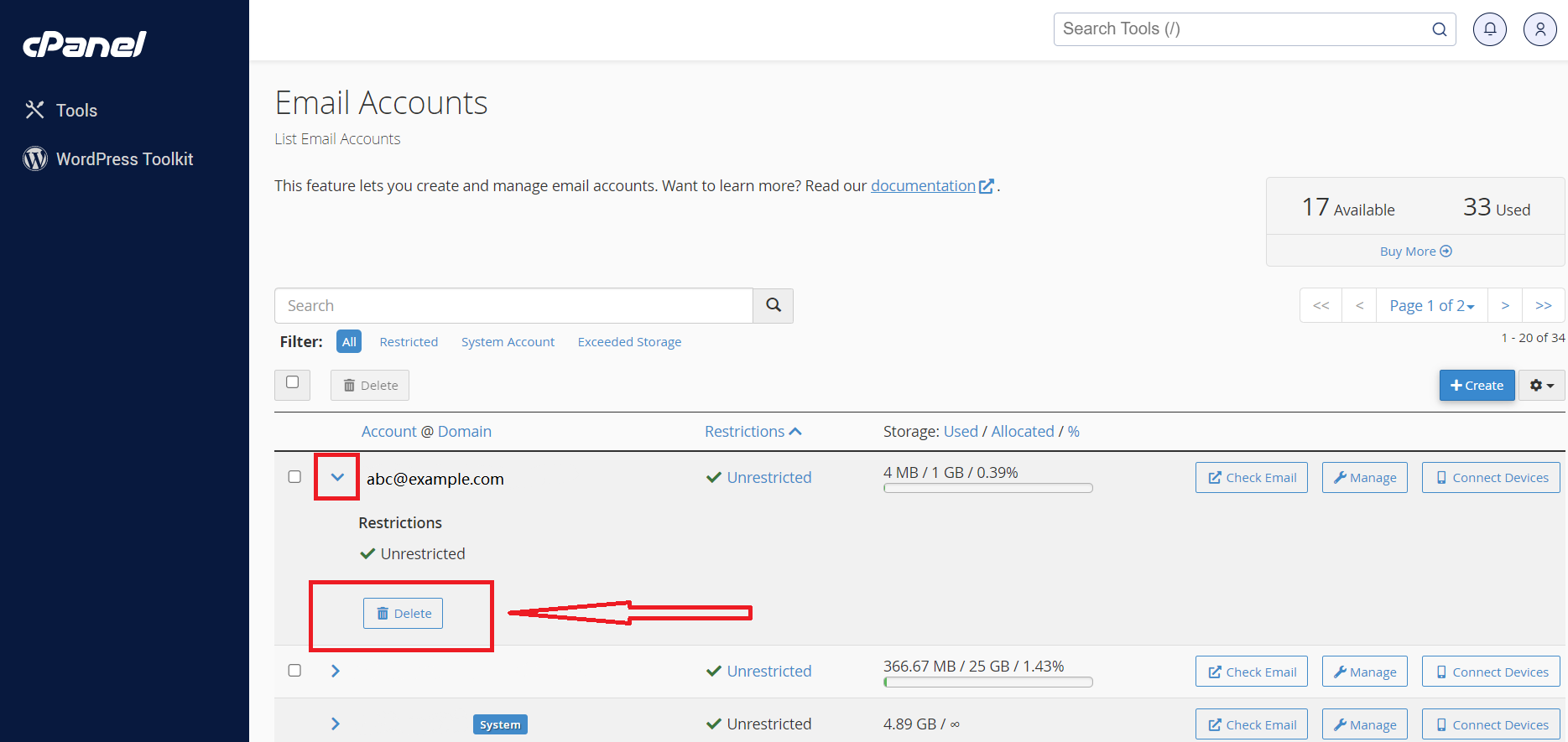
How to delete an email account in cPanel:
The
Email Accounts menu can be accessed quickly via
cPanel Shortcuts in the cPanel account.
Before cPanel removes your address, you must confirm you wish to delete it.
- Click the “Delete” button to confirm.