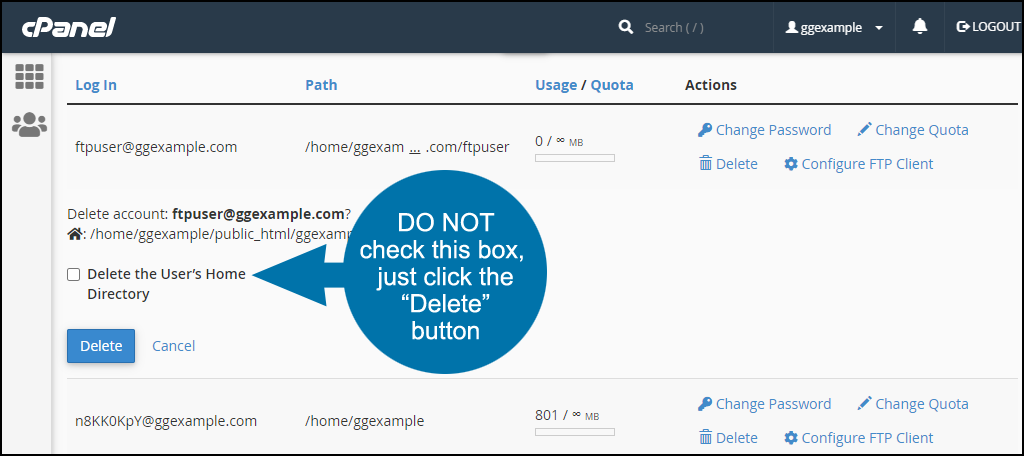
Log in to cPanel, and in the “FILES” section, click the “FTP Accounts” link or icon.
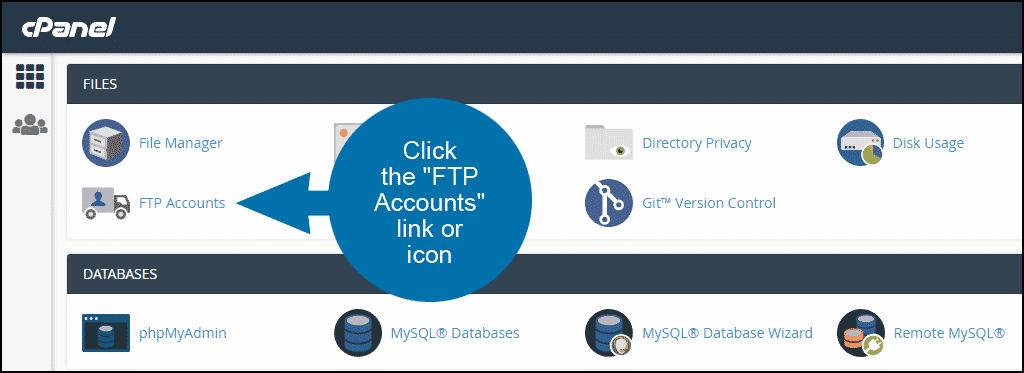
Enter the FTP username for the account in the “Log In” field.
Enter the FTP password in both the “Password” and “Password (again)” fields.
Note that the system will analyze your password or passphrase and reject it with a password strength error if it is too short or not sufficiently complex.
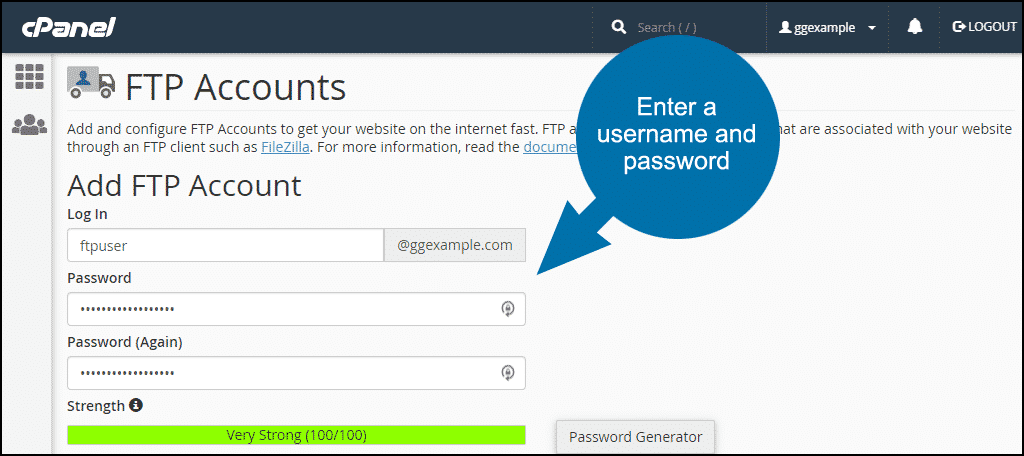
The “Directory” field is automatically populated with public_html/domain.tld/ftpuser (ftpuser is the username that you entered in the “Log in” field and domain.tld is the cPanel account domain).
The user you are creating will not have access to any directories above what you set in the “Directory” field. So we have to change the default entry here if we want the new user to have access to the ggexample.com (root) directory.
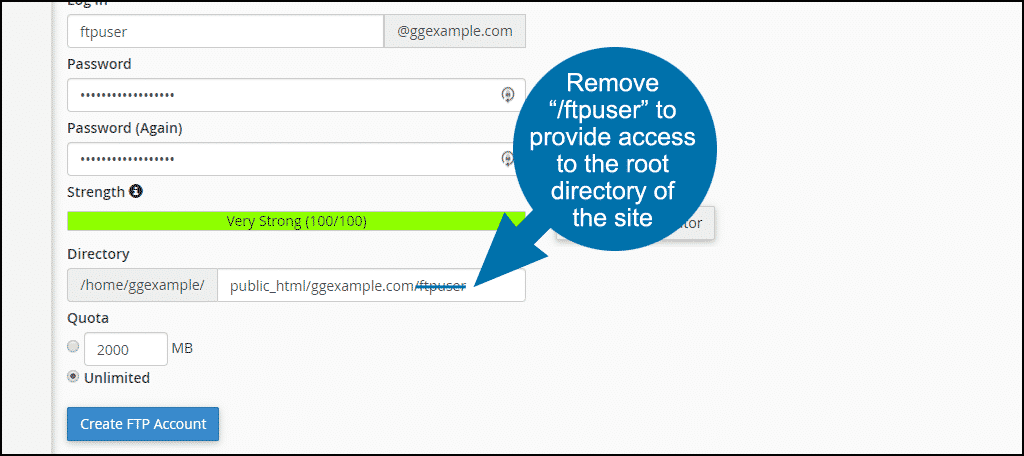
If, on the other hand, you intend to create a user that has restricted access to only a specific directory, replace /ftpuser in the “Directory” path with the name of the directory you wish to allow the user to access.
The subdirectory does not have to exist. cPanel will create it for you when the FTP user is created.
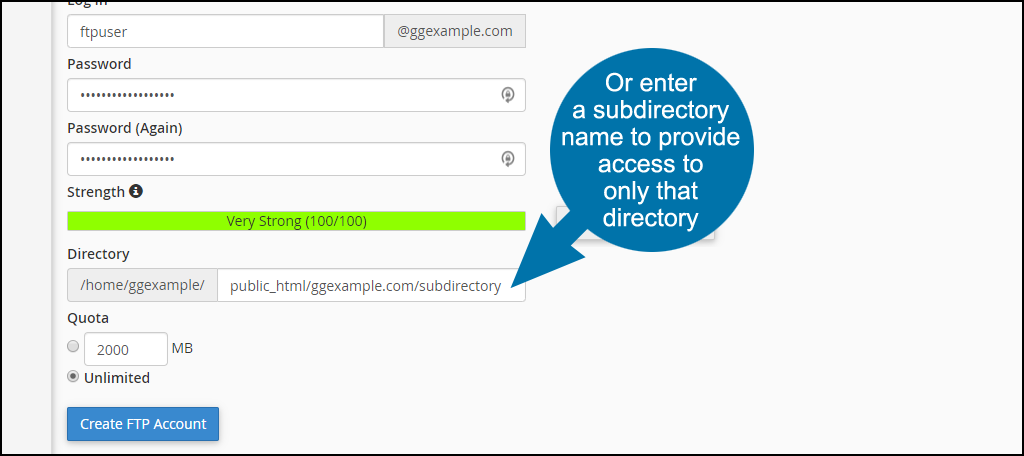
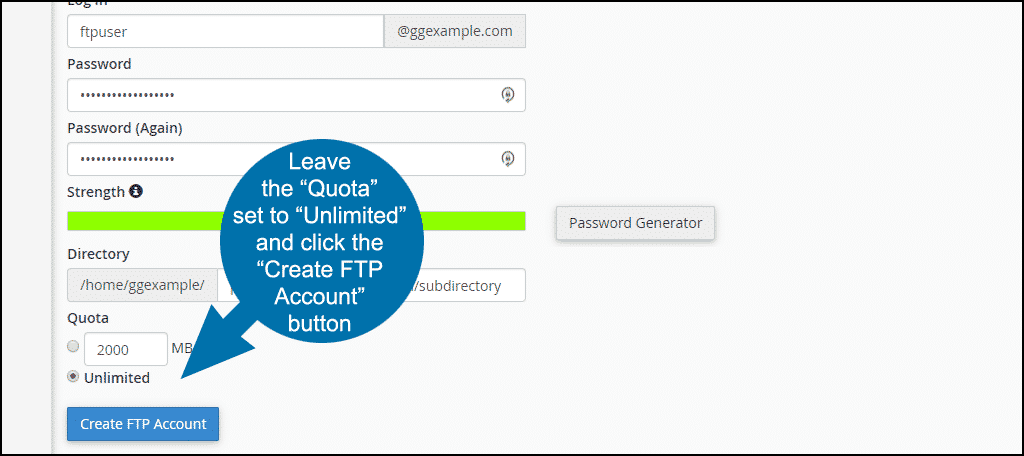
Setting a quota for the user will prevent them from uploading files once the quota is reached. To avoid that problem, leave the “Quota” set to “Unlimited.”
Click the “Create FTP Account” button.
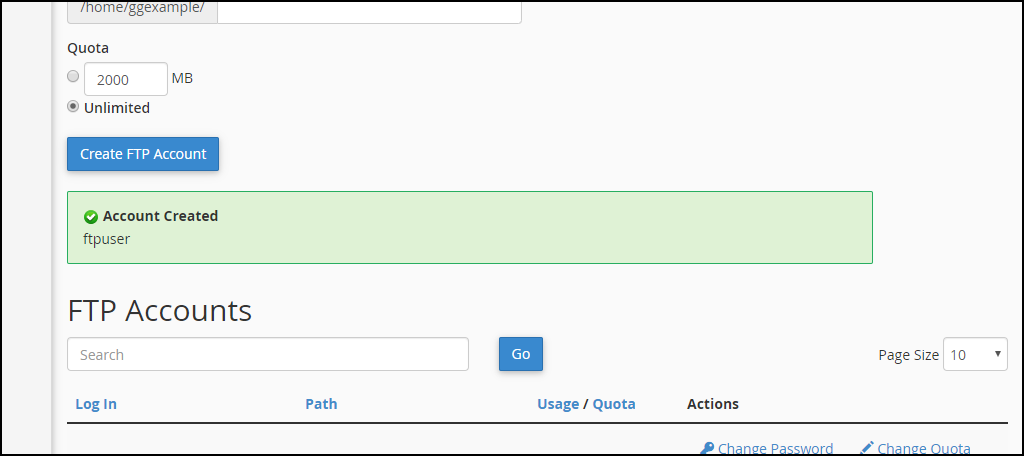
When the user is created, you will see an “Account Created” success notice.
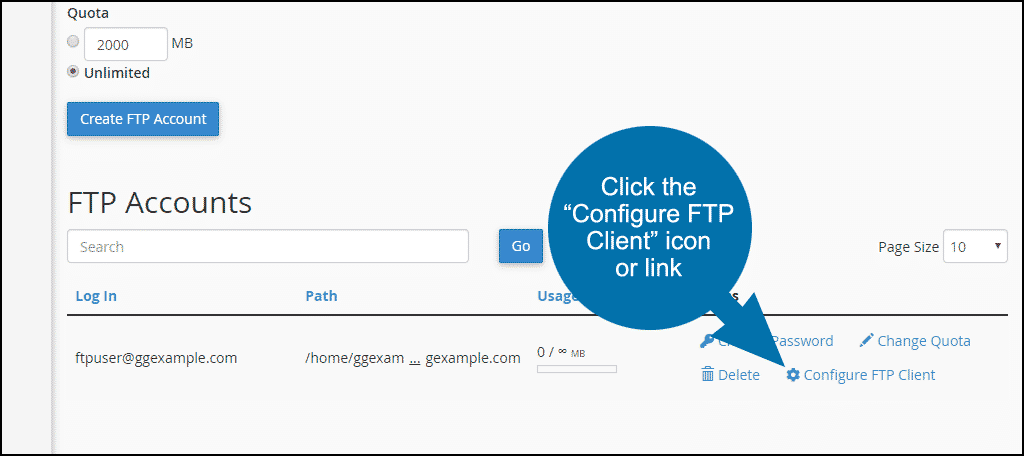
Once the FTP account is set up, scroll down to the “FTP Accounts” section of the page and click the “Configure FTP Client” link.
The manual FTP settings and downloadable configuration files for popular FTP programs will be shown.
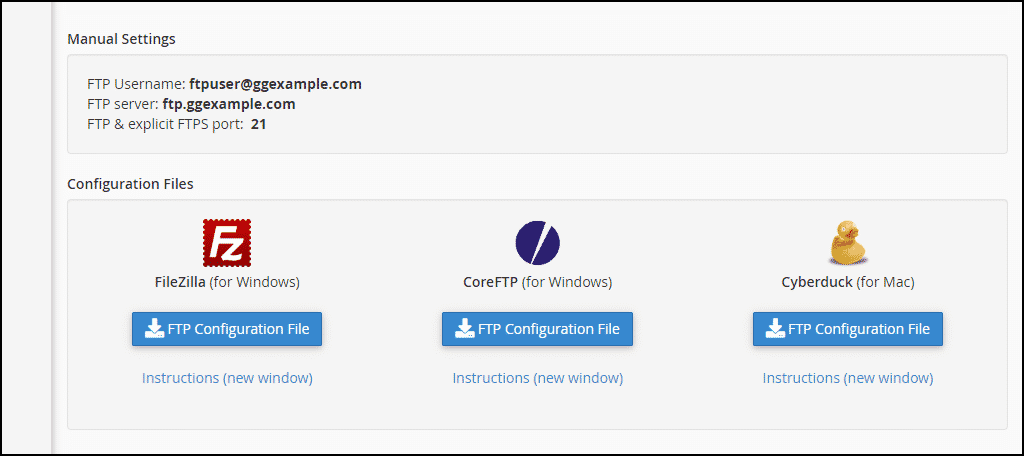
Click the “FTP Configuration” button to download a configuration file. Then you can import the configuration into your FTP program.
If your preferred FTP program is shown in the list, click the “Instructions (new window)” link. That will open a step by step guide for importing the configuration file.
If your preferred FTP program is not shown in the list, check the program documentation for configuration file import details.
To manually set up your FTP program, use the “Manual Settings” located above the configuration file download section.
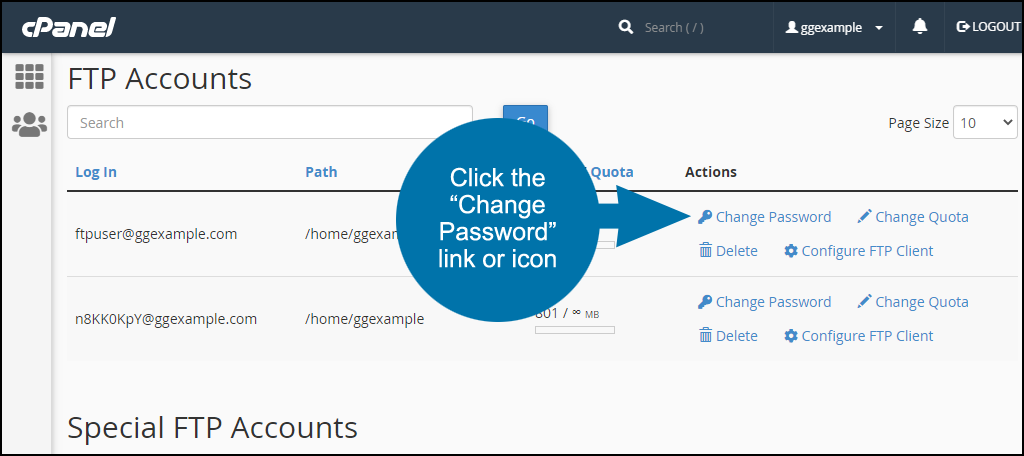
There’s no way to view the password for an FTP account. But if you forget the password, you can reset it in cPanel.
Log in to cPanel, and in the “FILES” section, click the “FTP Accounts” link or icon.
Scroll down to the “FTP Accounts” section.
Click the “Change Password” link or icon to the right of the account you want to remove.
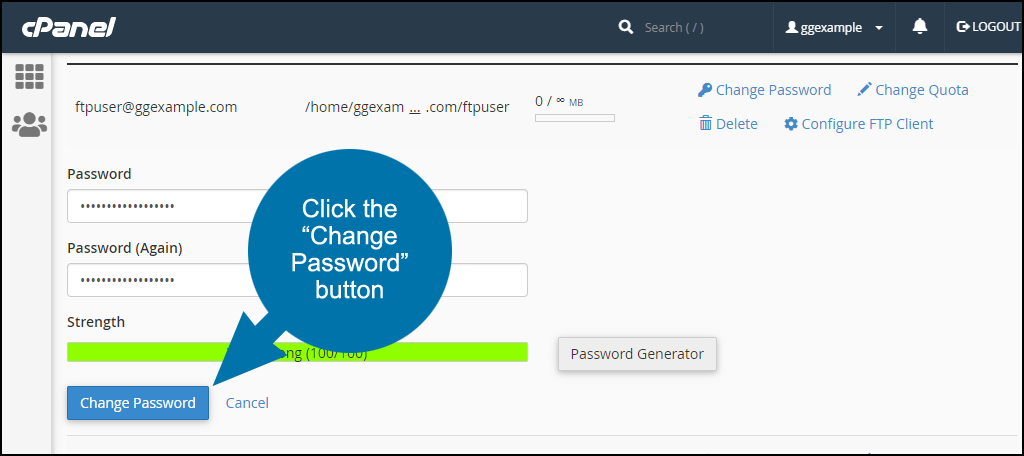
Enter the new password and click the “Change Password” button.
Log in to cPanel, and in the “FILES” section, click the “FTP Accounts” link or icon.
Scroll down to the “FTP Accounts” section.
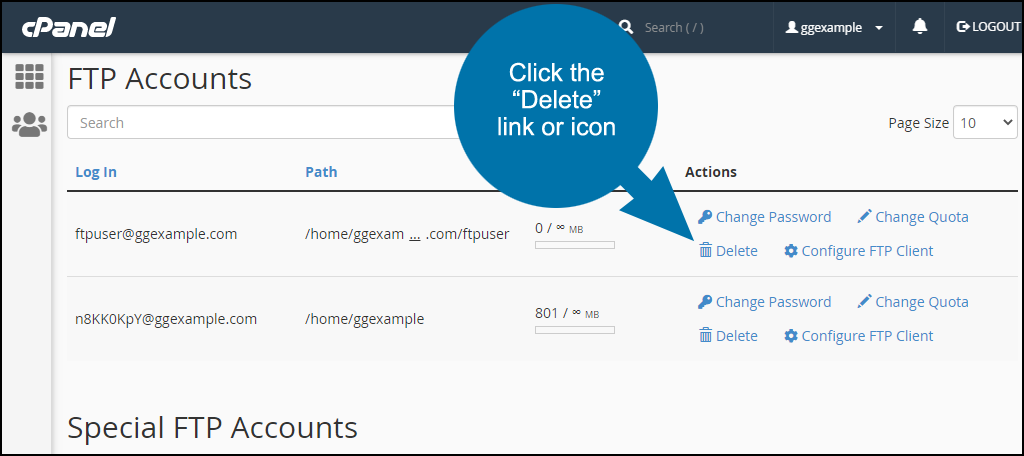
Click the “Delete” link or icon to the right of the account you want to remove.
You’ll have the option to “Delete the User’s Home Directory.” In most cases, you do not want to check that box.
Click the “Delete” button to delete the FTP user account.